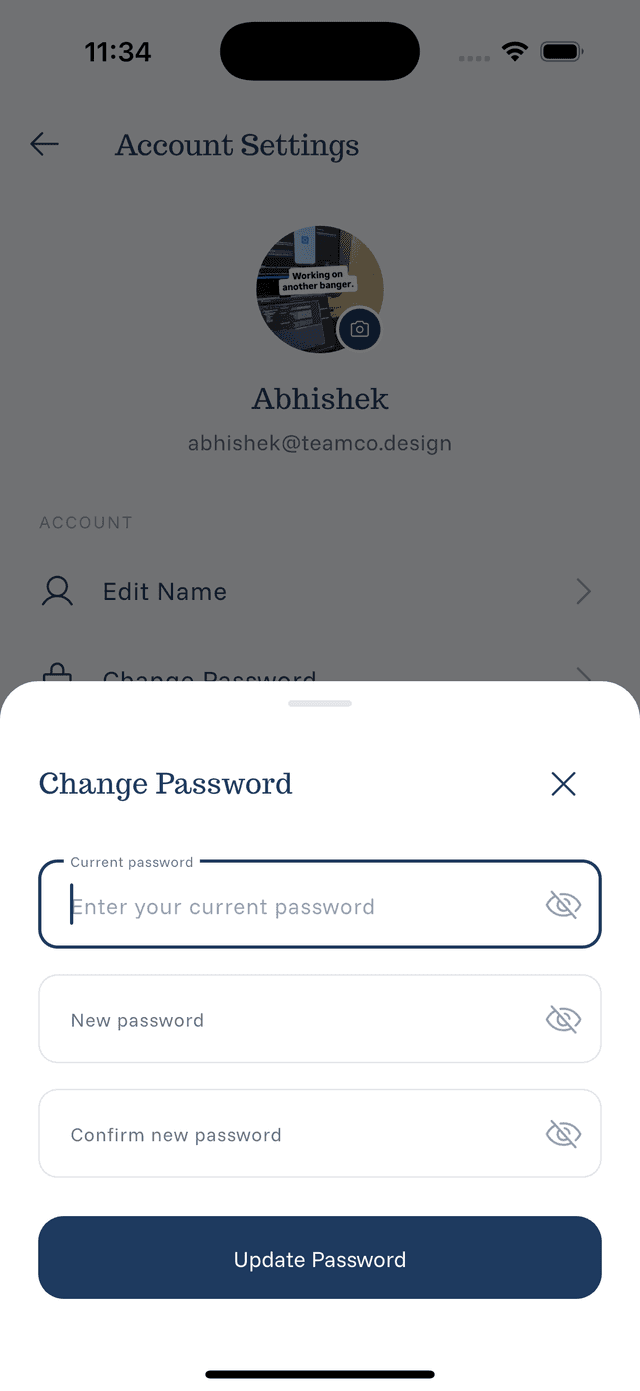
Changing Your Password
Keep your account secure by updating your password regularly.
When to Change Your Password
Consider changing your password if:
- It's been a while since you last changed it
- You've shared it accidentally
- You suspect unauthorized access
- You want a stronger password
How to Change
- Go to Settings
- Tap Change Password or Security
- Enter your current password
- Enter your new password
- Confirm the new password
- Tap Save or Update
Password Requirements
Strong passwords typically include:
- At least 8 characters
- Mix of uppercase and lowercase
- At least one number
- Special character (recommended)
Password Tips
- Don't reuse passwords from other apps
- Consider using a password manager
- Avoid personal info (birthdays, names)
- Make it memorable but unique
Forgot Password?
If you forget your password:
- Look for "Forgot Password" on the sign-in screen
- Follow the reset instructions
- Check your email for reset link