Setting Up Payment Sources
Payment sources help you track which account or card you're using for each expense.
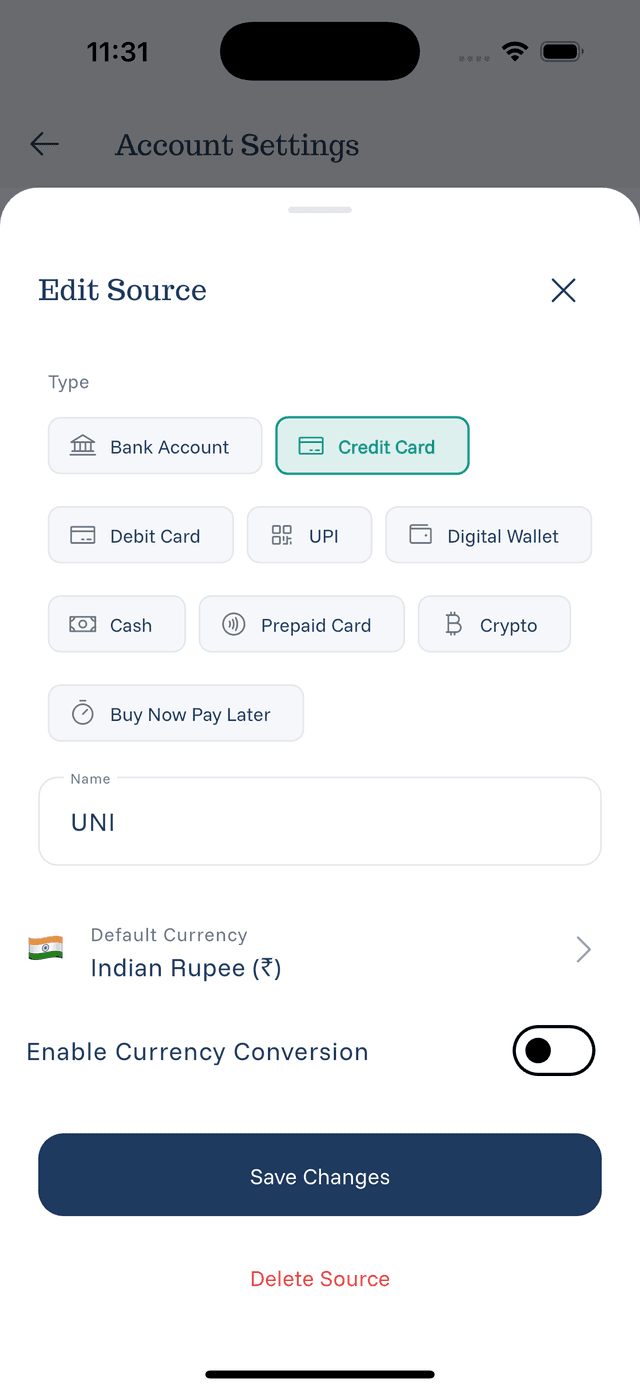
Adding a New Source
- Go to Settings from the home screen
- Tap Payment Sources
- Tap Add Source
- Enter the source name (e.g., "Chase Visa", "Apple Pay", "Cash")
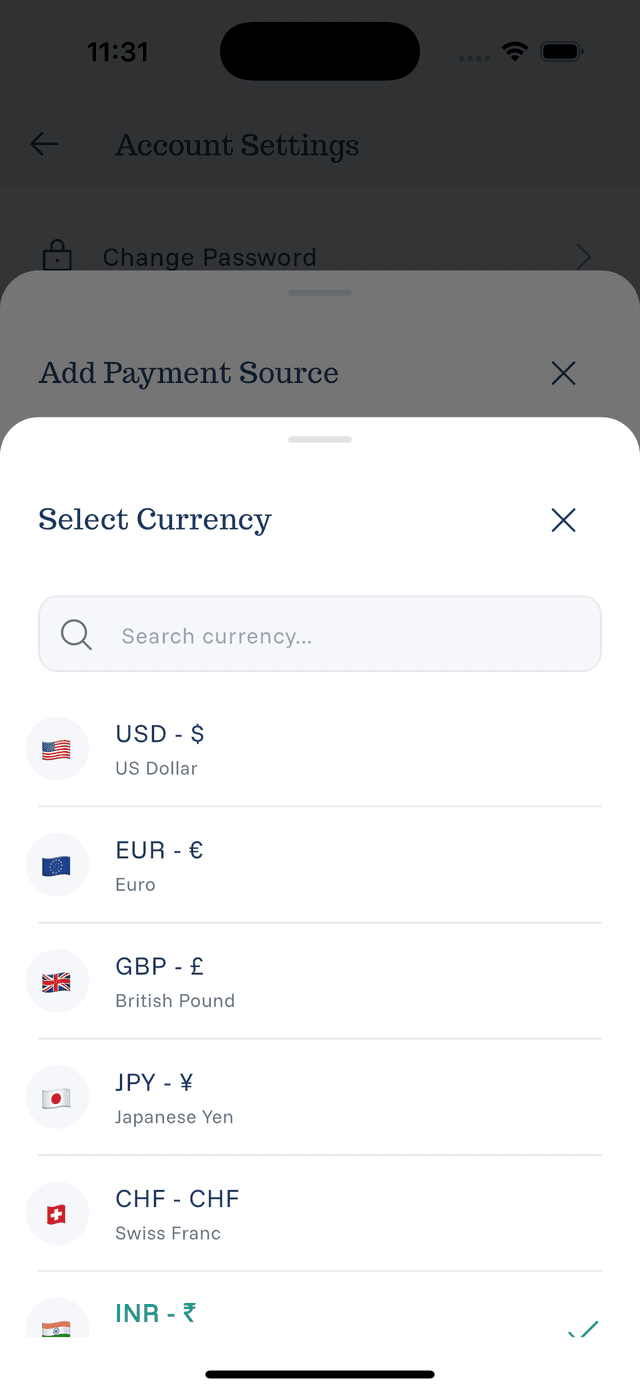
- Select the default currency for this source
- Tap Save
Configuring Source Currency
Each payment source can have its own currency. This is useful when:
- You have a card that charges in a specific currency
- You keep cash in different currencies while traveling
- You have accounts in different countries
Best Practices
- Be specific — Name sources clearly (e.g., "Work Amex" vs just "Amex")
- Set the right currency — Match the source currency to the actual account currency
- Keep it organized — Delete sources you no longer use