Understanding the Home Screen
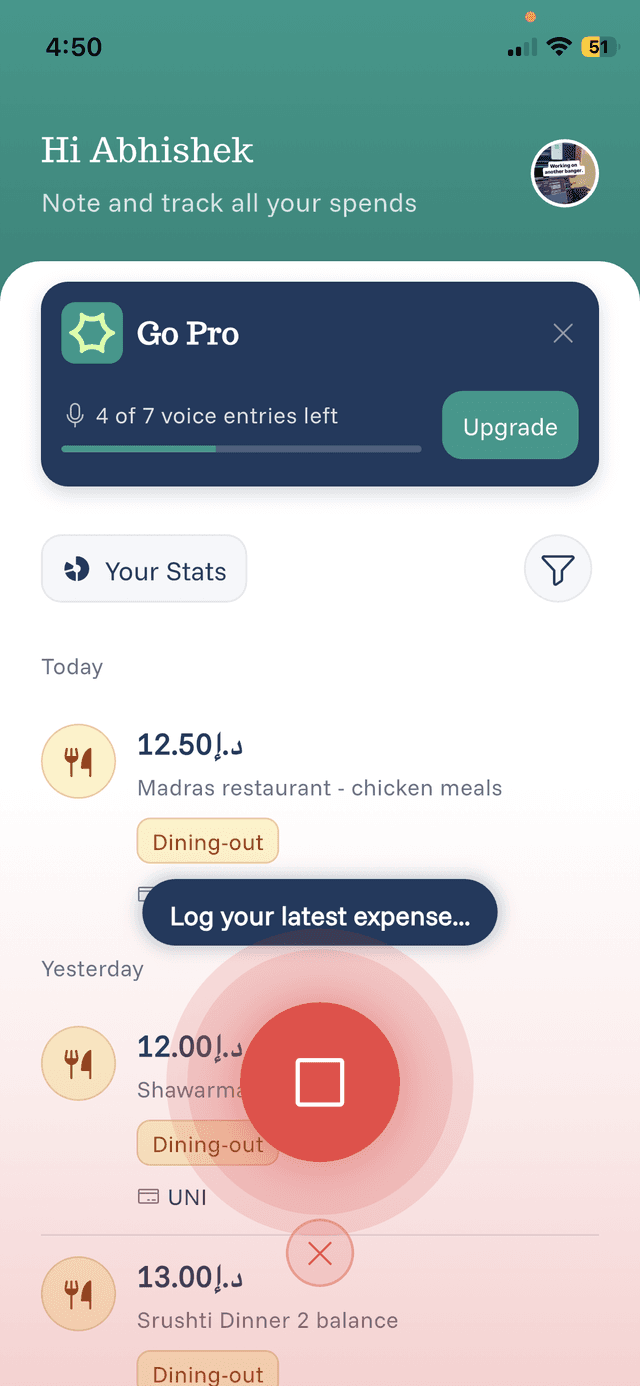
The home screen is your central hub for managing expenses.
Main Elements
- Your Stats — A quick overview of your recent spending
- Voice Recording Button — The large button at the bottom to start voice recording
- Expense List — Your recent expenses organized by date
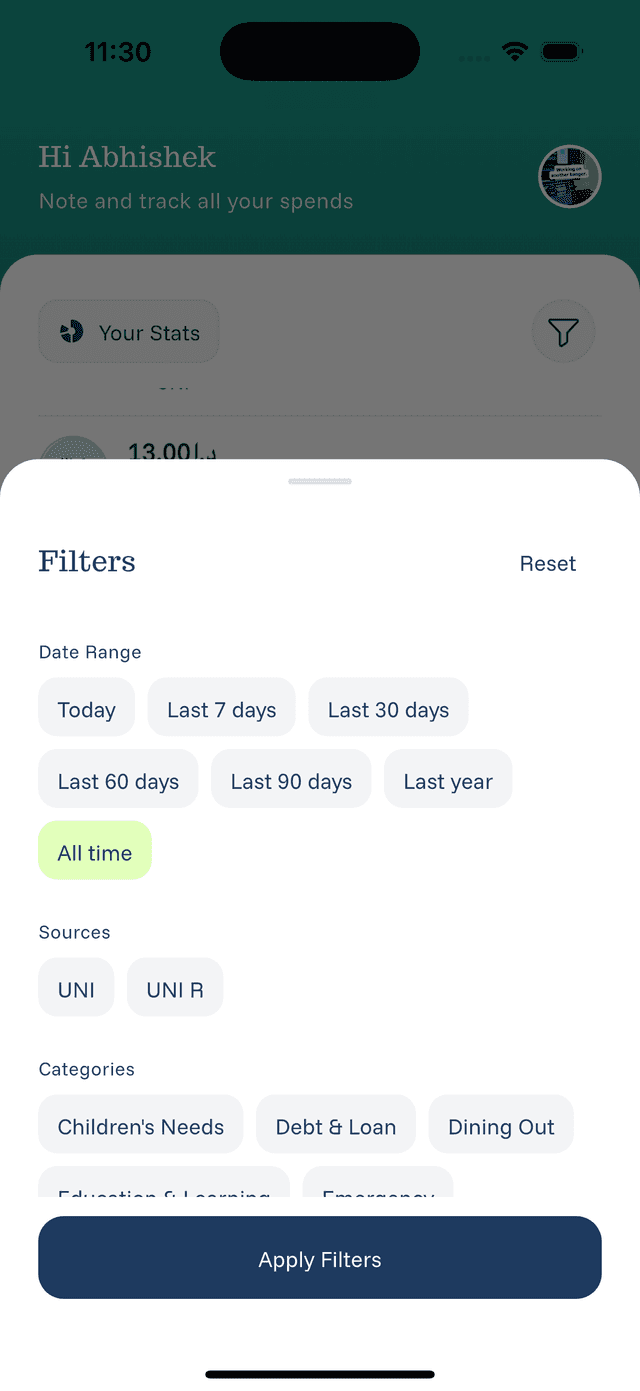
- Filter Button — Filter expenses by date, category, or source
Quick Actions
- Tap an expense to view its details
- Swipe left on an expense for quick actions (edit, delete)
- Tap the filter icon to narrow down your expense list
- Tap "Log your latest expense" to start recording
Navigation
The home screen shows your expenses grouped by day. Scroll down to see older entries. Your stats at the top update automatically as you add new expenses.