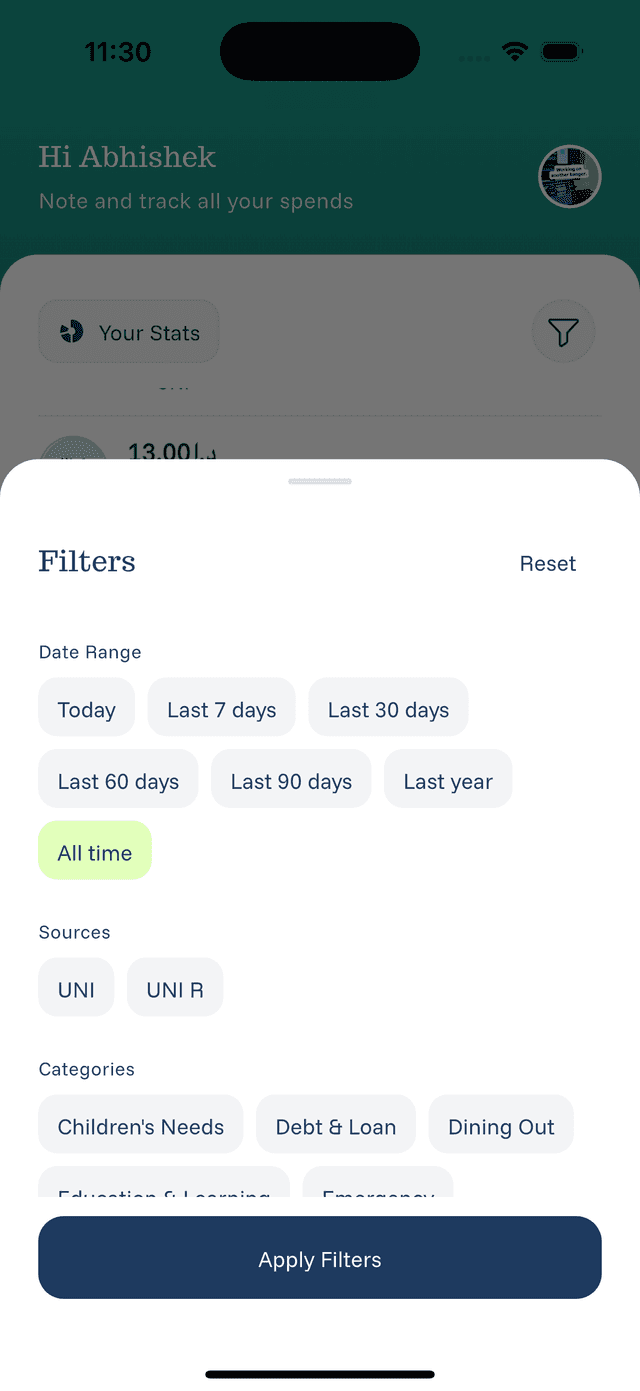
Using Filters
Filters help you find exactly what you're looking for.
Opening Filters
From the home screen, tap the Filter icon (usually in the top right area).
Filter Options
By Date Range:
- Today
- This Week
- This Month
- Last Month
- Custom Range
By Category:
- Select one or more categories
- See only dining, only transport, etc.
By Payment Source:
- Filter by specific cards or accounts
- See spending from one source only
By Currency:
- View expenses in a specific currency
- Useful for multi-currency users
Applying Filters
- Open the filter panel
- Select your filter criteria
- Tap Apply or Done
- The expense list updates to show matching items
Clearing Filters
- Tap Clear or Reset to remove all filters
- Or tap individual filter chips to remove them
- The full expense list returns
Tips for Using Filters
- Combine filters for specific searches
- Use date + category to analyze spending patterns
- Filter by source before reconciling accounts