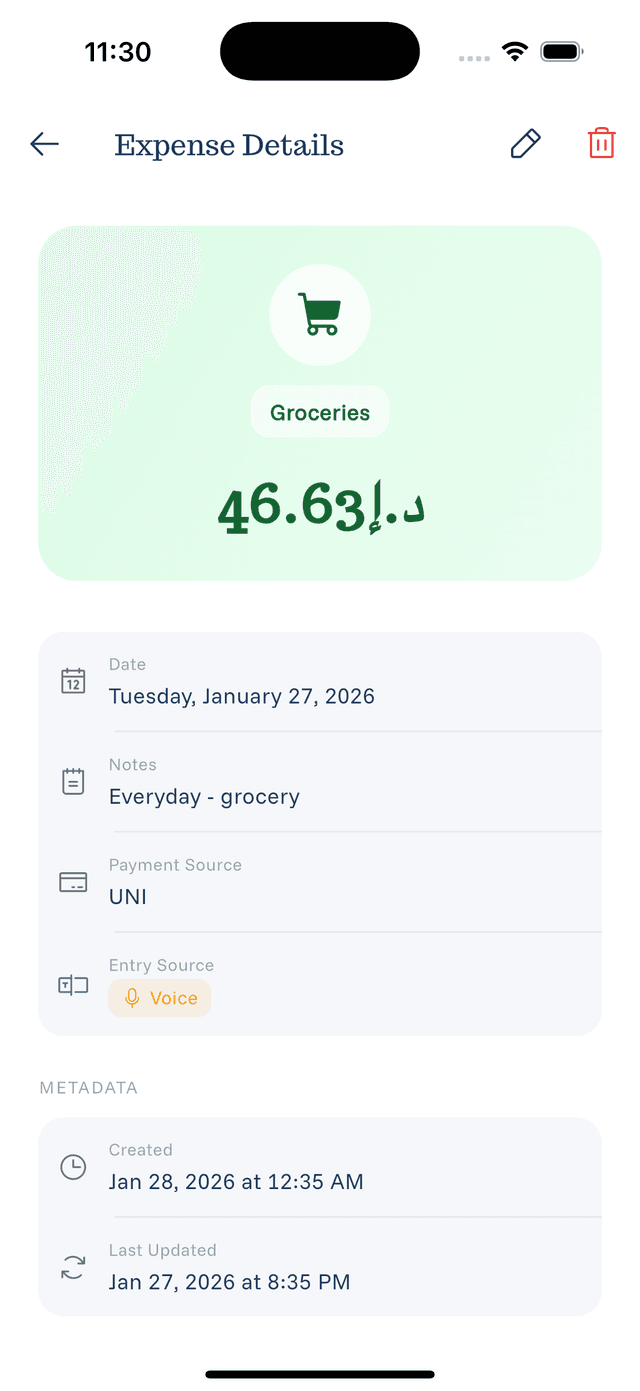
Viewing Expense Details
Every expense has a detailed view with all its information.
Opening Expense Details
From the home screen, tap any expense in your list to open its details.
Information Displayed
The details screen shows:
- Amount — The expense value and currency
- Description — What the expense was for
- Category — The assigned category with icon
- Payment Source — Which account/card was used
- Date — When the expense occurred
- Time Added — When you logged the expense
Actions Available
From the details screen you can:
- Edit — Modify any field
- Delete — Remove the expense
- Go Back — Return to the expense list
Using Details for Tracking
The details view helps you:
- Verify expenses are logged correctly
- Remember what a purchase was for
- Check which card you used
- Confirm dates for expense reports