Reviewing Voice Entries
After recording, you'll have a chance to review and confirm your expenses.
The Review Screen
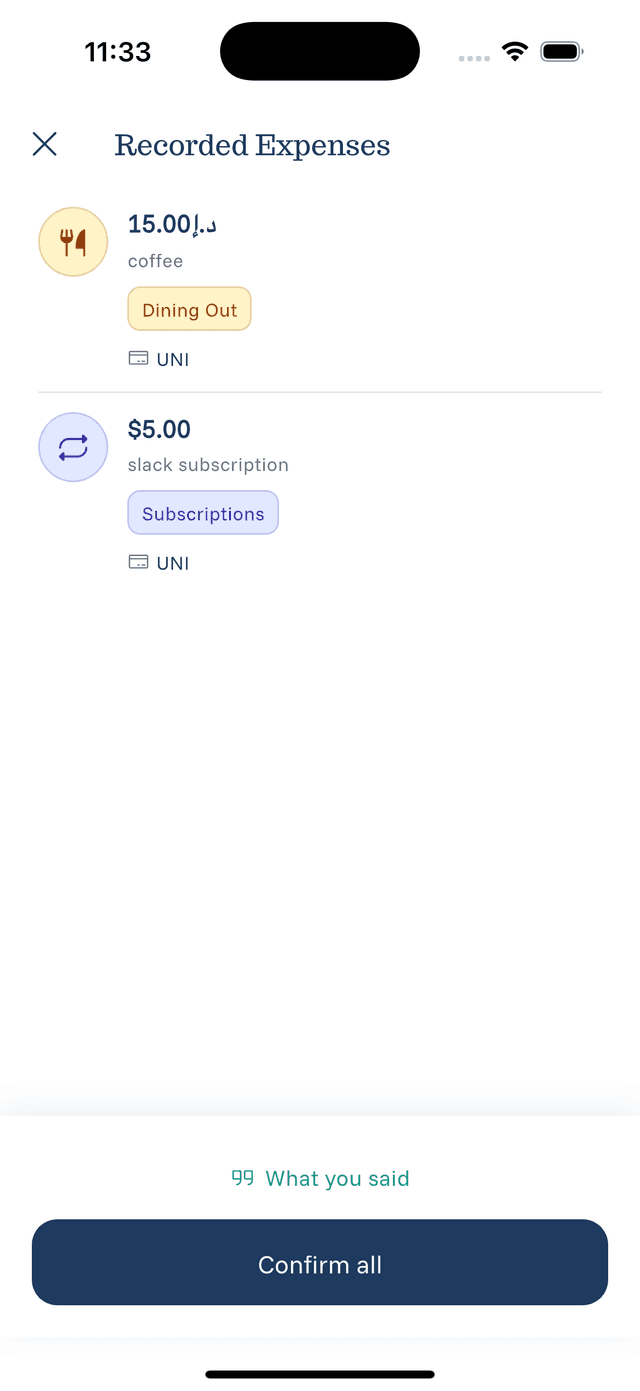
When you finish recording, you'll see a list of extracted expenses. Each entry shows:
- Amount — The detected amount and currency
- Description — What you mentioned
- Category — Auto-detected category
- Source — Your default payment source
Editing Before Confirming
If something isn't quite right:
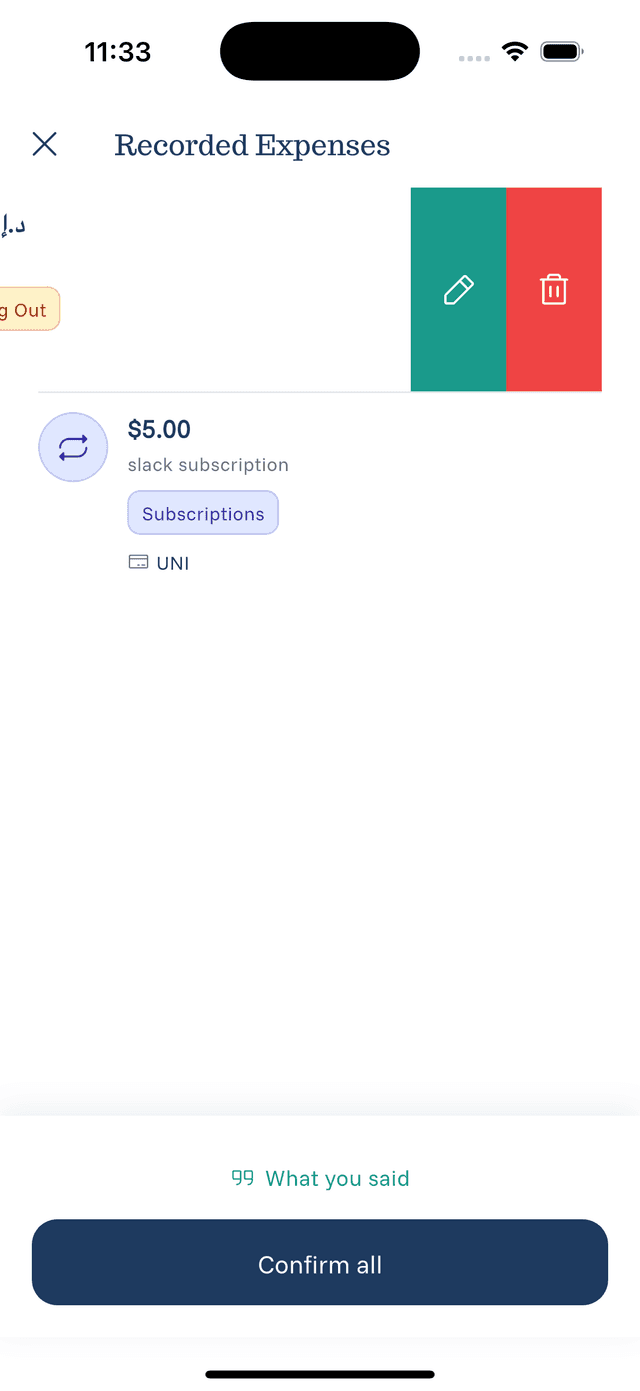
- Swipe left on the expense to see options
- Tap Edit to modify any field
- Change the category if the AI guessed wrong
- Adjust the amount if needed
Confirming Expenses
- Confirm All — Tap the confirm button to save all expenses at once
- Confirm Individually — Swipe and confirm one at a time
- Delete — Swipe left and tap delete to remove an incorrect entry
After Confirmation
Once confirmed, expenses appear in your main expense list and are included in your statistics.