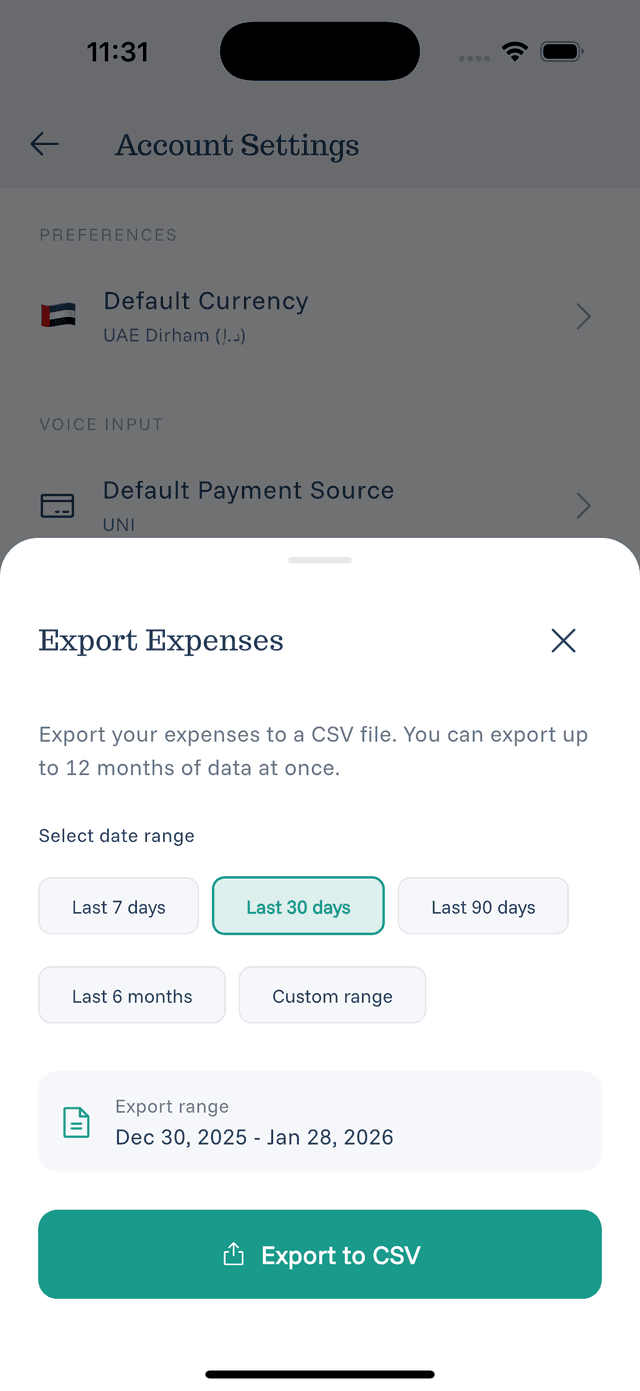
Exporting Your Data
Download all your expenses for backup, analysis, or tax purposes.
Why Export?
- Backup — Keep a copy of your data
- Analysis — Use in spreadsheets for deeper insights
- Tax preparation — Document deductible expenses
- Expense reports — Submit for reimbursement
- Migration — Move data to another system
How to Export
- Go to Settings
- Tap Export Expenses or Export Data
- Choose a date range (or export all)
- Select format (CSV is standard)
- Tap Export
- Save or share the file
Export Format
The CSV file includes:
- Date
- Amount
- Currency
- Description
- Category
- Payment Source
Using Your Export
In Excel/Google Sheets:
- Open the CSV file
- Data appears in columns
- Create charts, pivot tables, filters
For Tax Purposes:
- Filter by deductible categories
- Sum totals by category
- Print or save for records
Export Tips
- Export regularly as a backup
- Use date ranges for specific periods
- Keep exports organized by date
- Verify the export opens correctly
Your Data, Your Control
eqva money believes in data ownership. You can export everything at any time — your data is yours.